Research shouldn’t feel like a battle against your own browser. If you’re still manually tracking citations and squinting at dense PDFs, you’re playing the game on ‘Hard Mode.’ Research is a specialized skill, and today, that means knowing which digital tools to use so your brain can stay focused on what actually matters: your ideas.
I’ve found the 10 websites that turn the ‘drudgery’ of a dissertation into a streamlined process. Processes that used to be exhausting are now made easy: Literature reviews that used to take months are now possible in hours without the “infinite scroll” of Google, Complex jargon that used to cause “brain fog” is now explained in seconds without you feeling “behind.” Citing that used to lead to all-nighters is now automated without the risk of errors.
 Ever found one perfect paper but felt like there are ten other ‘important’ ones you’ve probably missed? Finding one good paper and then spending hours manually checking its references, hoping to find another one that fits, is like wandering in a dark room with a tiny flashlight, but with connected papers, you will see the entire “neighborhood” of your topic at a single glance.
Connected Paper is a visual tool. You plug in a single article, and it builds a visual map of papers that are similar to your original search. It helps you see which papers are the “sun” that everything else orbits around, ensuring you never miss a foundational text again.
Seeing the links visually helps you understand which papers are the “big players” in your topic. It turns a list of links into a clear map of knowledge.
Ever found one perfect paper but felt like there are ten other ‘important’ ones you’ve probably missed? Finding one good paper and then spending hours manually checking its references, hoping to find another one that fits, is like wandering in a dark room with a tiny flashlight, but with connected papers, you will see the entire “neighborhood” of your topic at a single glance.
Connected Paper is a visual tool. You plug in a single article, and it builds a visual map of papers that are similar to your original search. It helps you see which papers are the “sun” that everything else orbits around, ensuring you never miss a foundational text again.
Seeing the links visually helps you understand which papers are the “big players” in your topic. It turns a list of links into a clear map of knowledge.
 Reading academic abstracts can feel like deciphering a secret code. Semantic Scholar uses clever AI to provide a one-sentence summary of what a paper actually says. It saves you from spending twenty minutes reading a complex introduction only to realize the paper isn’t relevant to your project.
Traditional search engines give you thousands of results. Semantic Scholar gives you clarity; this tool provides “TL;DR” (Too Long; Didn’t Read) summaries for over 60 million papers.
Instead of reading a 30-page paper only to realize it’s not what you need, you can know if a paper is worth your time in 5 secs with a one-sentence summary.
It’s run by the Allen Institute for AI (a respected non-profit) so it is credible. However, because the summaries are AI-generated, always double-check the actual paper before quoting a specific statistic.
Note that it is strongest in Science, Medicine, and Tech, but it’s rapidly expanding. If you are in a very niche Arts field, some “TL;DRs” might not be available yet and You don’t “upload” to their public library—they find papers automatically. But you can create a “Research Feed” to save papers you find so you never lose them.
Reading academic abstracts can feel like deciphering a secret code. Semantic Scholar uses clever AI to provide a one-sentence summary of what a paper actually says. It saves you from spending twenty minutes reading a complex introduction only to realize the paper isn’t relevant to your project.
Traditional search engines give you thousands of results. Semantic Scholar gives you clarity; this tool provides “TL;DR” (Too Long; Didn’t Read) summaries for over 60 million papers.
Instead of reading a 30-page paper only to realize it’s not what you need, you can know if a paper is worth your time in 5 secs with a one-sentence summary.
It’s run by the Allen Institute for AI (a respected non-profit) so it is credible. However, because the summaries are AI-generated, always double-check the actual paper before quoting a specific statistic.
Note that it is strongest in Science, Medicine, and Tech, but it’s rapidly expanding. If you are in a very niche Arts field, some “TL;DRs” might not be available yet and You don’t “upload” to their public library—they find papers automatically. But you can create a “Research Feed” to save papers you find so you never lose them.
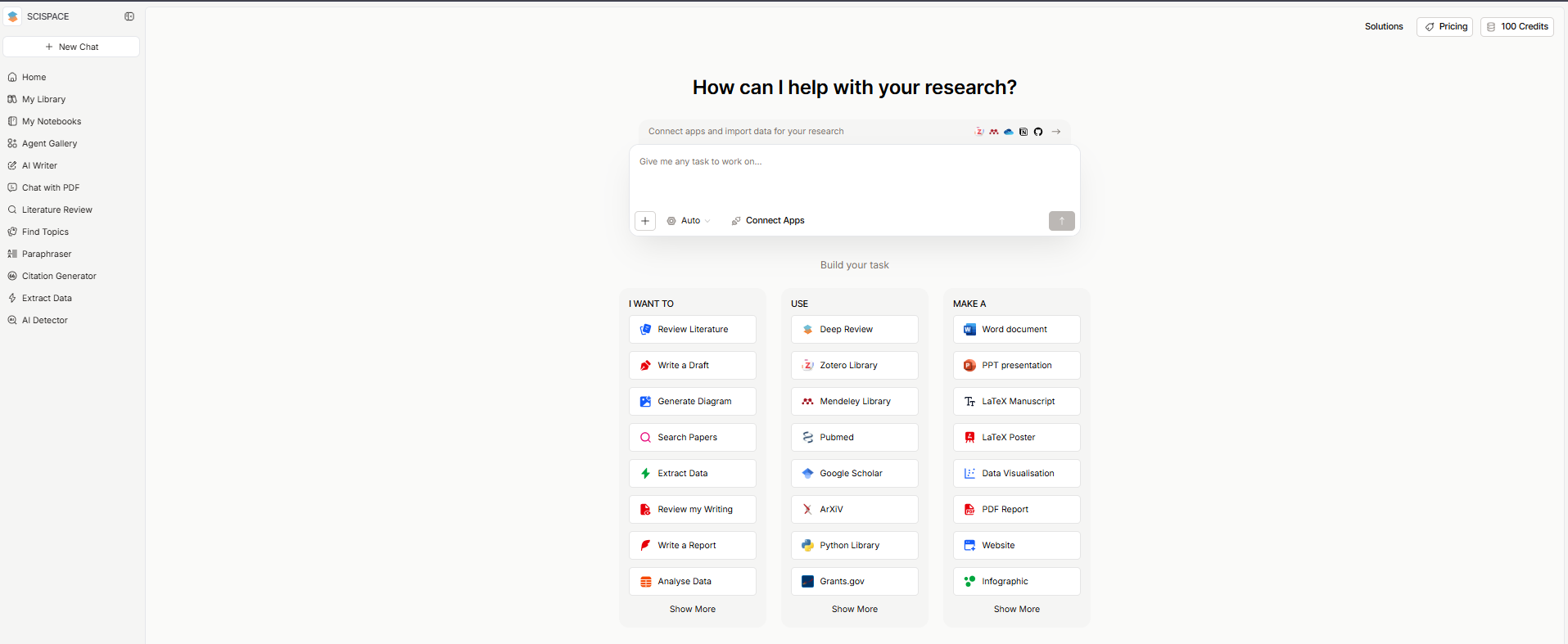 This is the ultimate tool for reducing academic anxiety. When you hit a paragraph of dense, intimidating jargon, you can highlight it, and SciSpace will explain it to you in plain English. It’s like having a friendly tutor sitting next to you, whispering, “Here’s what they actually mean by that.”
Unlike ChatGPT, which might “make things up,” SciSpace is connected directly to the PDF you uploaded. It can only answer based on the actual text in front of it, making it much safer for research, and you can download papers on it, If the paper is “Open Access,” you can download the PDF directly from their library. If it’s behind a paywall, they will link you to where you can find it.
This is the ultimate tool for reducing academic anxiety. When you hit a paragraph of dense, intimidating jargon, you can highlight it, and SciSpace will explain it to you in plain English. It’s like having a friendly tutor sitting next to you, whispering, “Here’s what they actually mean by that.”
Unlike ChatGPT, which might “make things up,” SciSpace is connected directly to the PDF you uploaded. It can only answer based on the actual text in front of it, making it much safer for research, and you can download papers on it, If the paper is “Open Access,” you can download the PDF directly from their library. If it’s behind a paywall, they will link you to where you can find it.
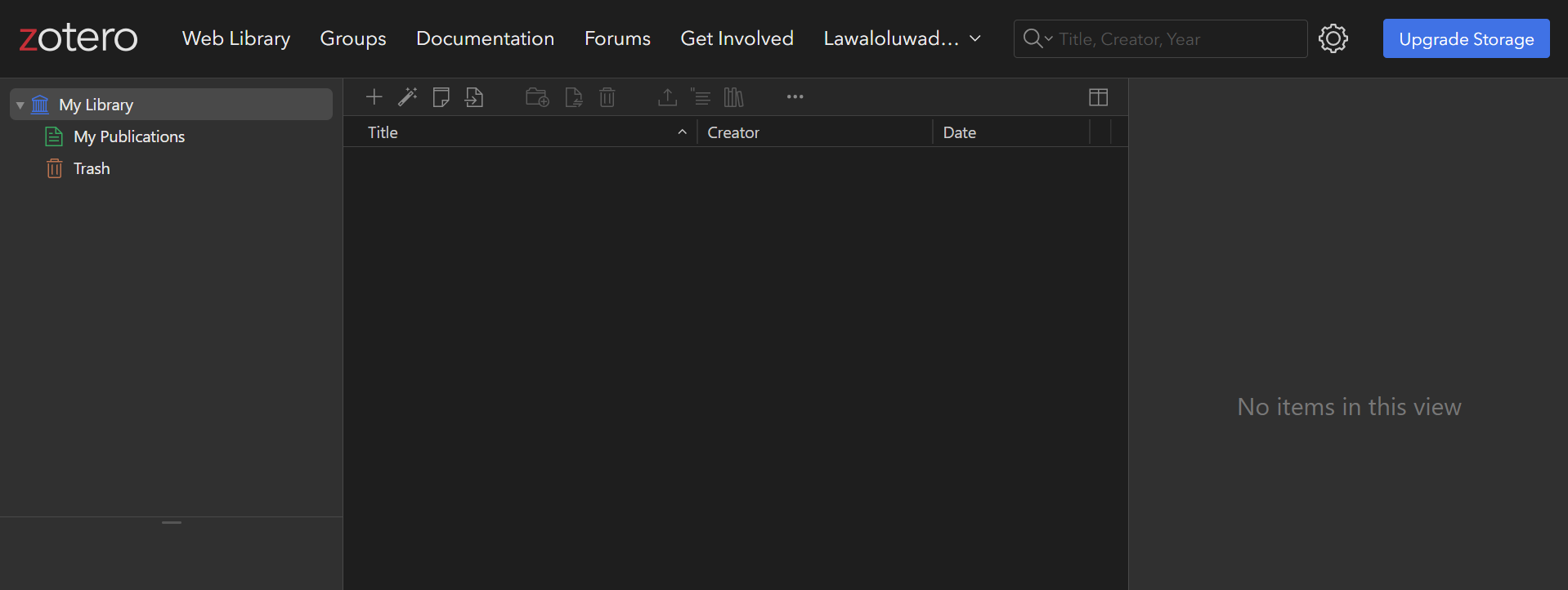 That thing of having a “Downloads” folder full of files named document123.pdf and no idea which one has that quote you need and you end up manually typing out your bibliography at 3 AM, shouldn’t be happening. How can you finish your 10,000-word draft, only to realize you’ve lost the link to three major quotes and have to spend all night manually typing out a bibliography in APA style?
The “where did I see that quote?” panic is real. Zotero is a free tool that lives in your browser. With one click, it saves the paper, the link, and the citation info into a neat folder. It’s not just a storage bin; it’s a brain-extension that ensures you never lose a reference again. Tell me Which researcher doesn’t need this!
The in-text citation is one of its features. You just search for the author’s name in the Zotero pop-up while you’re typing, and it drops the (Smith, 2024) right into your paragraph.
It’s possible to have every paper you ever read for your research organized, searchable, and cited automatically. If you aren’t using a reference manager, you are working three times harder than you need to.
That thing of having a “Downloads” folder full of files named document123.pdf and no idea which one has that quote you need and you end up manually typing out your bibliography at 3 AM, shouldn’t be happening. How can you finish your 10,000-word draft, only to realize you’ve lost the link to three major quotes and have to spend all night manually typing out a bibliography in APA style?
The “where did I see that quote?” panic is real. Zotero is a free tool that lives in your browser. With one click, it saves the paper, the link, and the citation info into a neat folder. It’s not just a storage bin; it’s a brain-extension that ensures you never lose a reference again. Tell me Which researcher doesn’t need this!
The in-text citation is one of its features. You just search for the author’s name in the Zotero pop-up while you’re typing, and it drops the (Smith, 2024) right into your paragraph.
It’s possible to have every paper you ever read for your research organized, searchable, and cited automatically. If you aren’t using a reference manager, you are working three times harder than you need to.
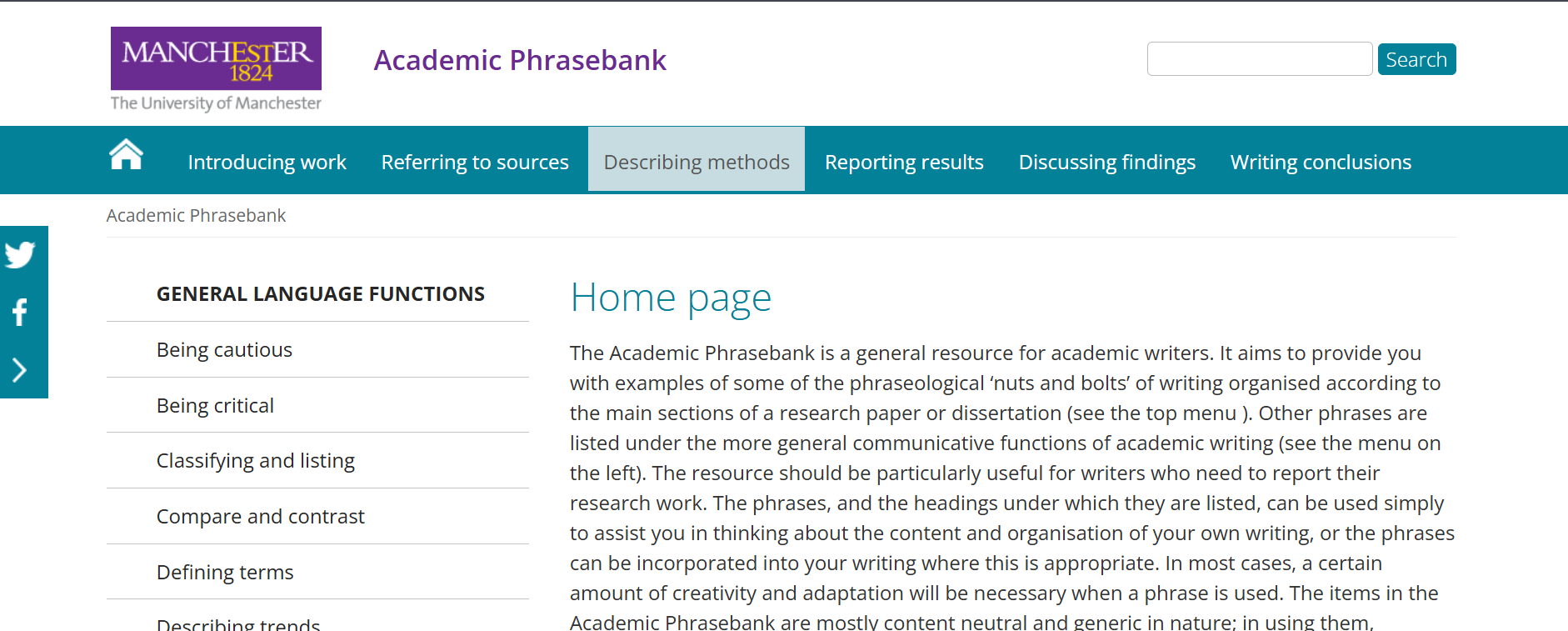 The hardest part of writing is the first sentence. The Manchester Academic Phrasebank is a library of “academic skeletons.” It gives you phrases like: “The evidence suggests that…” or “A key limitation of this study is…”
It doesn’t write the paper for you; it gives you the professional “bridge” between your ideas. It makes you sound like a professional researcher , even as a beginner.
The hardest part of writing is the first sentence. The Manchester Academic Phrasebank is a library of “academic skeletons.” It gives you phrases like: “The evidence suggests that…” or “A key limitation of this study is…”
It doesn’t write the paper for you; it gives you the professional “bridge” between your ideas. It makes you sound like a professional researcher , even as a beginner.
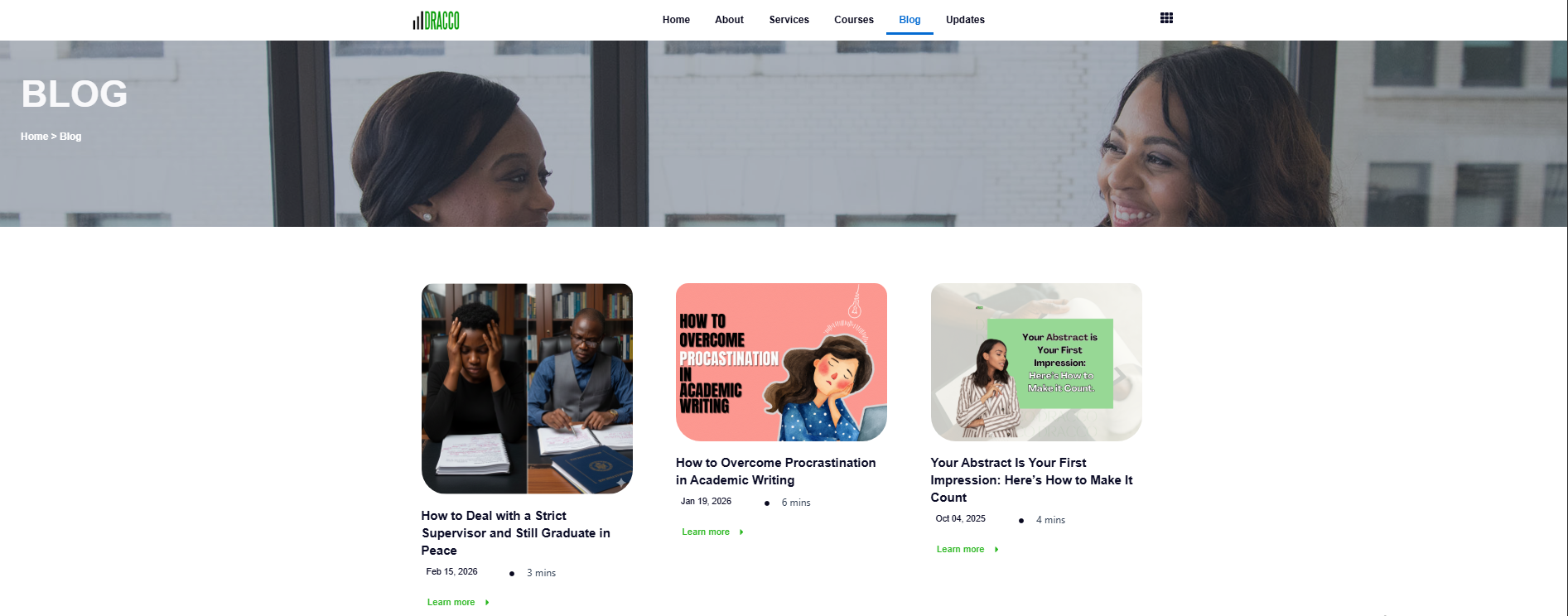 Sometimes you don’t need a tool; you need a teacher. The DRACCO website is home to the best free blog content on the internet for the “how” of research and courses. Need to know the referencing tools that will save you hours in research? Introduction to data analysis using STATA?, How to overcome procrastination in academic writing? Our guides are clear and simple.
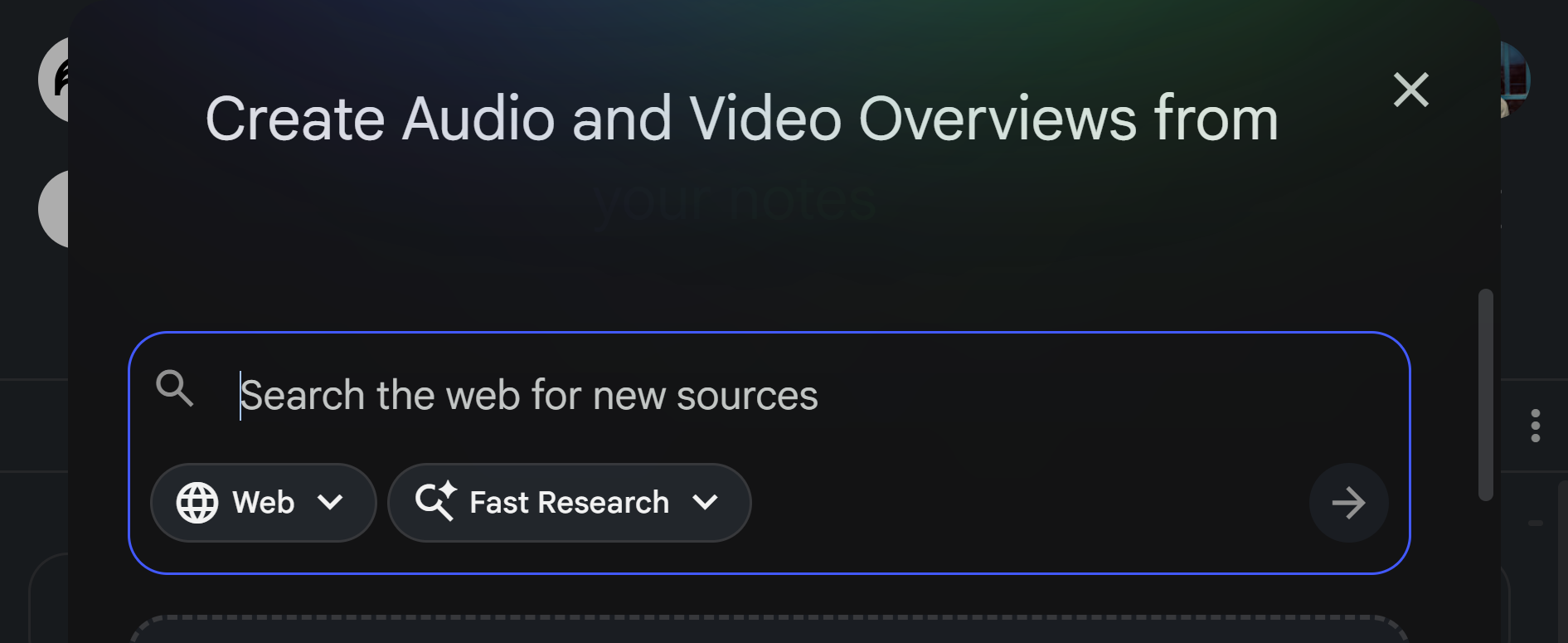 A newer tool from Google, NotebookLM is a game-changer for organizing your own thoughts. You don’t ask it questions about the whole internet; you ask it questions about your notes. You upload your lecture transcripts or your PDF readings, and it becomes an expert on your specific project.
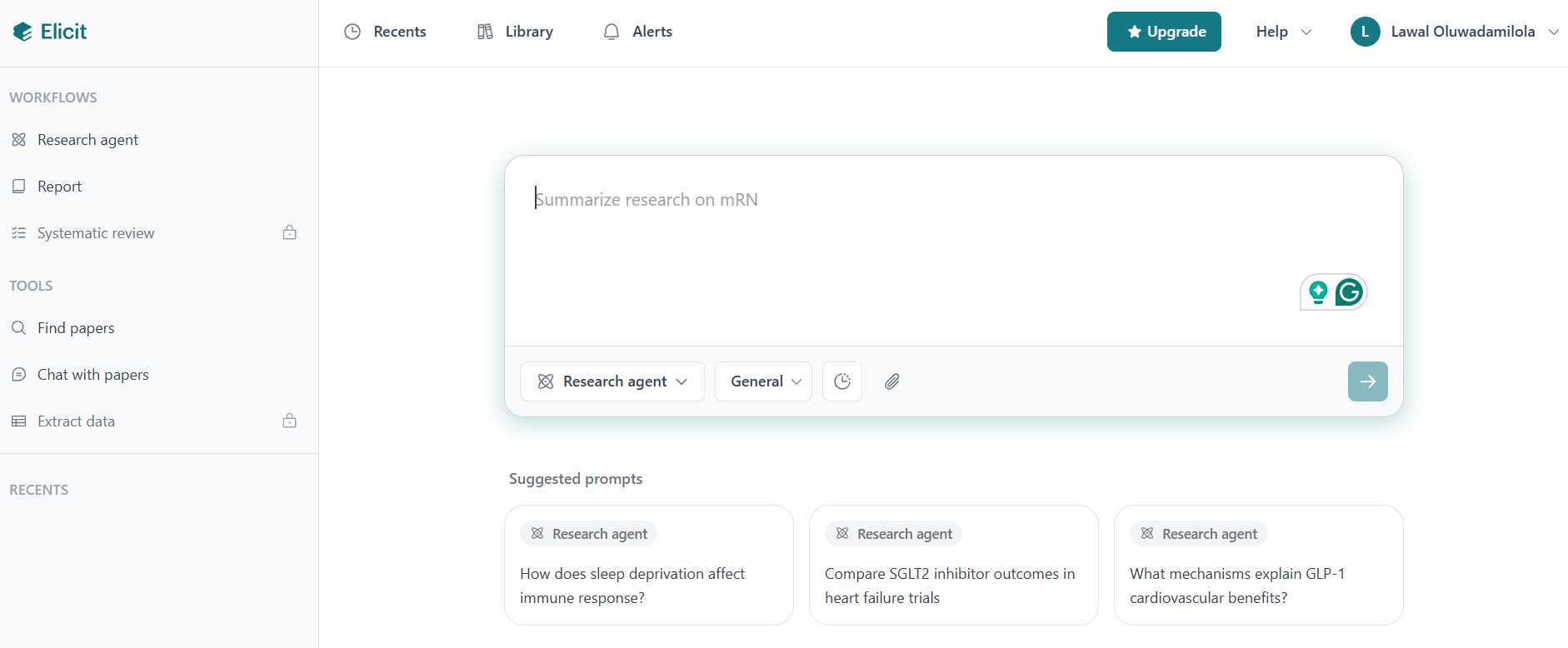 When you find 10 papers. To find out what “sample size” they all used, you have to open every PDF, hit Ctrl+F, and type “sample” 10 different times. It’s tedious and easy to miss things but with elicit you will have a custom “comparison table” of your research in seconds.
 ResearchRabbit is your personal recommendation engine. It’s best known for “Discovery.” Once you add a few papers to a collection, it starts suggesting others you might like, just like a music app suggests new songs.
 We can’t leave out the classic. Google Scholar is the largest database of scholarly literature in the world.
1. Connected Papers: See the Big Picture
Ever found one perfect paper but felt like there are ten other ‘important’ ones you’ve probably missed? Finding one good paper and then spending hours manually checking its references, hoping to find another one that fits, is like wandering in a dark room with a tiny flashlight, but with connected papers, you will see the entire “neighborhood” of your topic at a single glance.
Connected Paper is a visual tool. You plug in a single article, and it builds a visual map of papers that are similar to your original search. It helps you see which papers are the “sun” that everything else orbits around, ensuring you never miss a foundational text again.
Seeing the links visually helps you understand which papers are the “big players” in your topic. It turns a list of links into a clear map of knowledge.
Cost Check:
You get 5 of these visual maps per month for free—perfect for the start of a new project. but if you need to map dozens of topics in a single week, you might hit a limit.How to Use It:
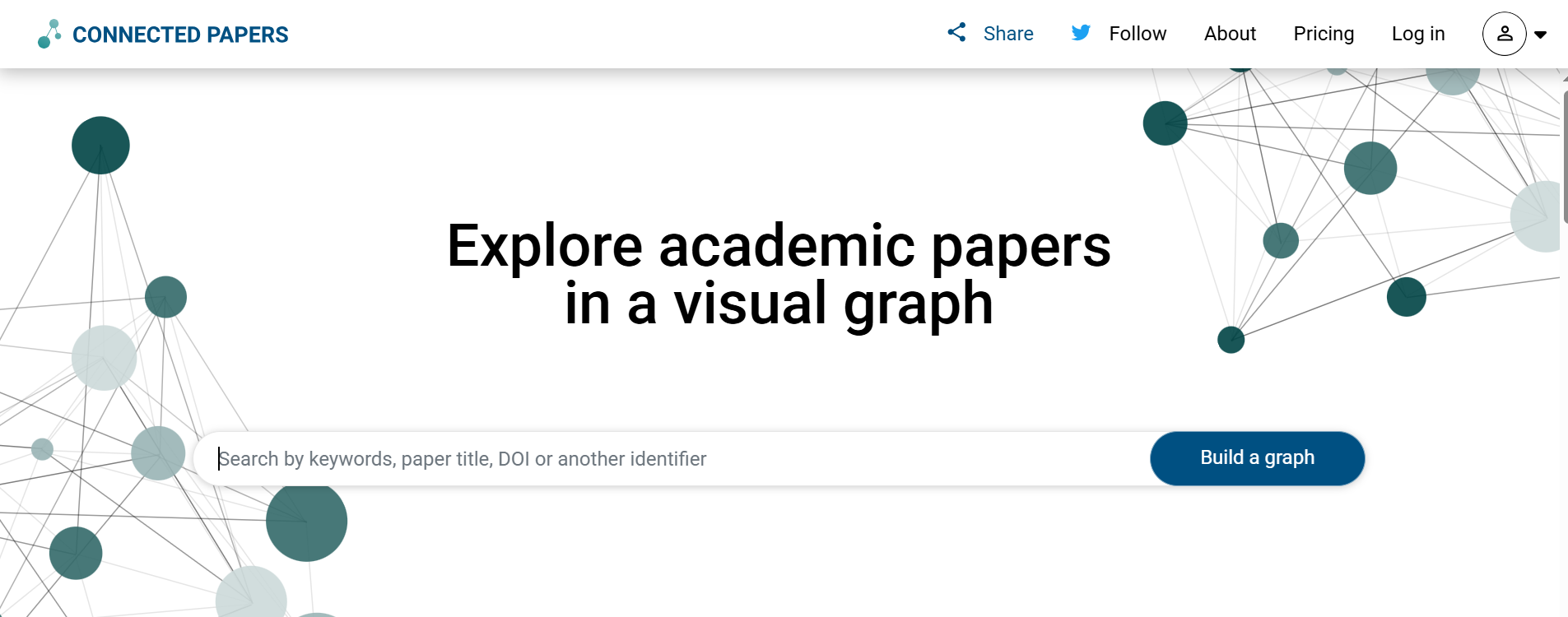
When you land on the homepage, you’ll see a simple search bar. Type in the DOI or title of that one paper you really liked. Click “Build a Graph.” Suddenly, your screen fills with a web of circles. You might wonder, “How do I find the most important papers here?” Look for the largest circles, they represent the “heavy hitters” in your field. If a circle is large and centrally located, it’s a “must-read” for your research, and the closer two circles are, the more similar they are. Click any circle to read the abstract on the right. It’s like looking at a family tree of ideas rather than a boring list of links, isn’t that a relief! 2. Semantic Scholar: The “TL;DR” for Science
Reading academic abstracts can feel like deciphering a secret code. Semantic Scholar uses clever AI to provide a one-sentence summary of what a paper actually says. It saves you from spending twenty minutes reading a complex introduction only to realize the paper isn’t relevant to your project.
Traditional search engines give you thousands of results. Semantic Scholar gives you clarity; this tool provides “TL;DR” (Too Long; Didn’t Read) summaries for over 60 million papers.
Instead of reading a 30-page paper only to realize it’s not what you need, you can know if a paper is worth your time in 5 secs with a one-sentence summary.
It’s run by the Allen Institute for AI (a respected non-profit) so it is credible. However, because the summaries are AI-generated, always double-check the actual paper before quoting a specific statistic.
Note that it is strongest in Science, Medicine, and Tech, but it’s rapidly expanding. If you are in a very niche Arts field, some “TL;DRs” might not be available yet and You don’t “upload” to their public library—they find papers automatically. But you can create a “Research Feed” to save papers you find so you never lose them.
How to use it:
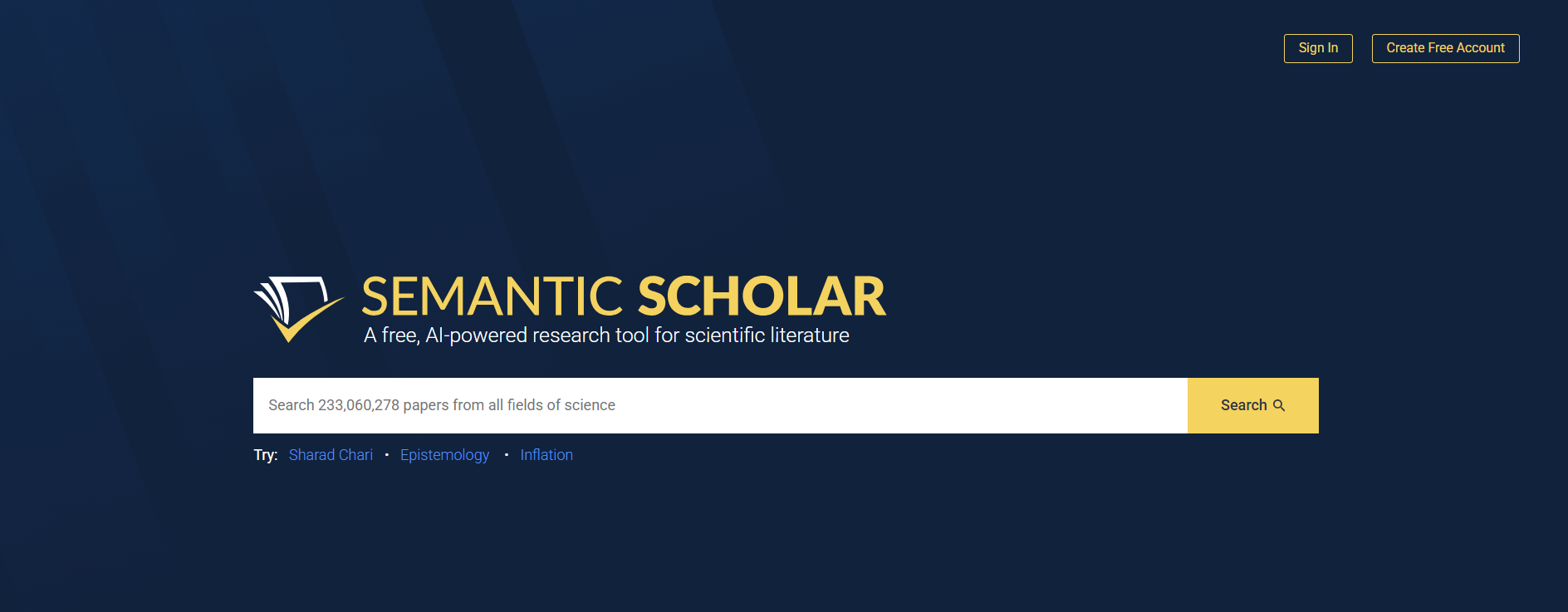
Visit the homepage and type your topic into the search bar. When the results appear, look specifically for the little text block labeled “TL;DR” under each paper title. You get a one-sentence summary of the paper’s goal and results instantly.Cost Check:
It is 100% free. No hidden subscriptions or “premium” search tiers.3. SciSpace (Formerly Typeset.io): Your Personal Academic Translator
This is the ultimate tool for reducing academic anxiety. When you hit a paragraph of dense, intimidating jargon, you can highlight it, and SciSpace will explain it to you in plain English. It’s like having a friendly tutor sitting next to you, whispering, “Here’s what they actually mean by that.”
Unlike ChatGPT, which might “make things up,” SciSpace is connected directly to the PDF you uploaded. It can only answer based on the actual text in front of it, making it much safer for research, and you can download papers on it, If the paper is “Open Access,” you can download the PDF directly from their library. If it’s behind a paywall, they will link you to where you can find it.
How to Use It:
Upload your confusing PDF. On the right, a chat window appears called “Copilot.” Highlight the confusing sentence with your mouse. Click “Explain.” The AI will rewrite it in plain, simple English. You will never be “locked out” of a conversation because of big words. You will understand every single sentence you read, no matter how “academic” it sounds.Cost Check:
The basic version allows you to chat with several papers for free every month.4. Zotero: Your Citation Safety Net or The “One-Click” Librarian
That thing of having a “Downloads” folder full of files named document123.pdf and no idea which one has that quote you need and you end up manually typing out your bibliography at 3 AM, shouldn’t be happening. How can you finish your 10,000-word draft, only to realize you’ve lost the link to three major quotes and have to spend all night manually typing out a bibliography in APA style?
The “where did I see that quote?” panic is real. Zotero is a free tool that lives in your browser. With one click, it saves the paper, the link, and the citation info into a neat folder. It’s not just a storage bin; it’s a brain-extension that ensures you never lose a reference again. Tell me Which researcher doesn’t need this!
The in-text citation is one of its features. You just search for the author’s name in the Zotero pop-up while you’re typing, and it drops the (Smith, 2024) right into your paragraph.
It’s possible to have every paper you ever read for your research organized, searchable, and cited automatically. If you aren’t using a reference manager, you are working three times harder than you need to.
How to Use It:
First, install the Zotero app and the “Zotero Connector” for your browser (Chrome, Safari, or Firefox). When you find a paper you like, look for the tiny icon in your browser bar (it looks like a piece of paper or a blue “Z”). Click it. Snap! It’s saved. When you’re writing in Word or Google Docs, click the “Zotero” tab and hit “Add/Edit Citation” to put a source in your sentence. When you’re done, click “Add Bibliography.” Zotero writes the entire list for you in perfect APA or Harvard style instantly. Find a paper you like? Click the “Z.” Snap! It’s saved. When you go to write your essay in Word, click “Add Bibliography.” Zotero writes the whole list for you in perfect APA or Harvard style and you will never have to do manual typing ever, Ever.Cost Check:
It’s 100% free and open-source, but there is a 300MB storage limit for cloud syncing (usually enough for a few hundred PDFs). If you want to store thousands of large files in their cloud, you might eventually need to pay $20/year for more space.5. Manchester Academic Phrasebank: The “How to Start” Guide
The hardest part of writing is the first sentence. The Manchester Academic Phrasebank is a library of “academic skeletons.” It gives you phrases like: “The evidence suggests that…” or “A key limitation of this study is…”
It doesn’t write the paper for you; it gives you the professional “bridge” between your ideas. It makes you sound like a professional researcher , even as a beginner.
How to use it:
This is a library of “fill-in-the-blank” sentences. Click on “Reporting Results” or “Introducing Work.” You’ll find hundreds of phrases like: “Recent evidence suggests that…” You simply copy the “skeleton” and plug in your own research. It turns writing into a “fill-in-the-blanks” game, which kills the fear of the blank page. For example, If you need to “disagree with an author,” you go to that section and find: “A significant weakness with [Name’s] argument is…” You just plug in the name and your idea. It removes the “writer’s block” because the structure is already there for you.6. .DRACCO Blog
Sometimes you don’t need a tool; you need a teacher. The DRACCO website is home to the best free blog content on the internet for the “how” of research and courses. Need to know the referencing tools that will save you hours in research? Introduction to data analysis using STATA?, How to overcome procrastination in academic writing? Our guides are clear and simple.
How to Use It:
Visit our blog . Our articles break down complex steps into simple, fluff-free checklists. Use these guides as a foundation, then check out our specialized courses to master the high-level skills like data analysis.7. NotebookLM: Turning Notes into Knowledge
A newer tool from Google, NotebookLM is a game-changer for organizing your own thoughts. You don’t ask it questions about the whole internet; you ask it questions about your notes. You upload your lecture transcripts or your PDF readings, and it becomes an expert on your specific project.
How to use it:
Go to the site and create a “Notebook.” Upload your PDFs, lecture notes, or even YouTube links. On the left, you’ll see your sources. On the right, a chat box. Ask, “What are the 3 main arguments across all these papers?” It will give you an answer using only your sources. It even creates “Audio Overviews”—where two AI voices discuss your research like a podcast, so you can listen and learn while you walk.8. Elicit: The Information Extractor
When you find 10 papers. To find out what “sample size” they all used, you have to open every PDF, hit Ctrl+F, and type “sample” 10 different times. It’s tedious and easy to miss things but with elicit you will have a custom “comparison table” of your research in seconds.
How to use it:
Go to the search bar and ask a specific question like, “What are the effects of sleep on student memory?” On your screen, you’ll see a table appear. Each row is a different paper. One column tells you the main finding, another tells you the sample size, and another tells you the limitations. You can add your own columns too! It feels like the tool has “read” the papers for you and laid the answers out on your desk.9. ResearchRabbit
ResearchRabbit is your personal recommendation engine. It’s best known for “Discovery.” Once you add a few papers to a collection, it starts suggesting others you might like, just like a music app suggests new songs.
How to Use It:
Create a “Category” and add your “Seed Papers” (the ones you already have). Click “Similar Work” or “Later Work” to see a beautiful, interactive web of new suggestions.Cost Check:
Completely free for researchers.10. Google Scholar: The Reliable Foundation
We can’t leave out the classic. Google Scholar is the largest database of scholarly literature in the world.